
Testing FlexClip’s New AI Features: Video Editing When You’re All Thumbs
25 November 2025
Introduction
Sound familiar? Your smartphone storage is overflowing with gigabytes of footage from vacations, holidays, or work projects, but you catastrophically lack the time to turn this chaos into a cohesive video. Editing, music selection, and frame synchronization take hours of routine work that often gets put off until "later".
This is where tools designed to make life easier for creators come to the rescue. FlexClip has already established itself as a convenient video creation assistant, but the developers have gone even further.
While users previously still had to spend time on manual editing, the new features—specifically AI Recreate and Auto Edit—offer to delegate this work to artificial intelligence. The idea is simple: transform "raw" footage into a finished product with minimal effort.
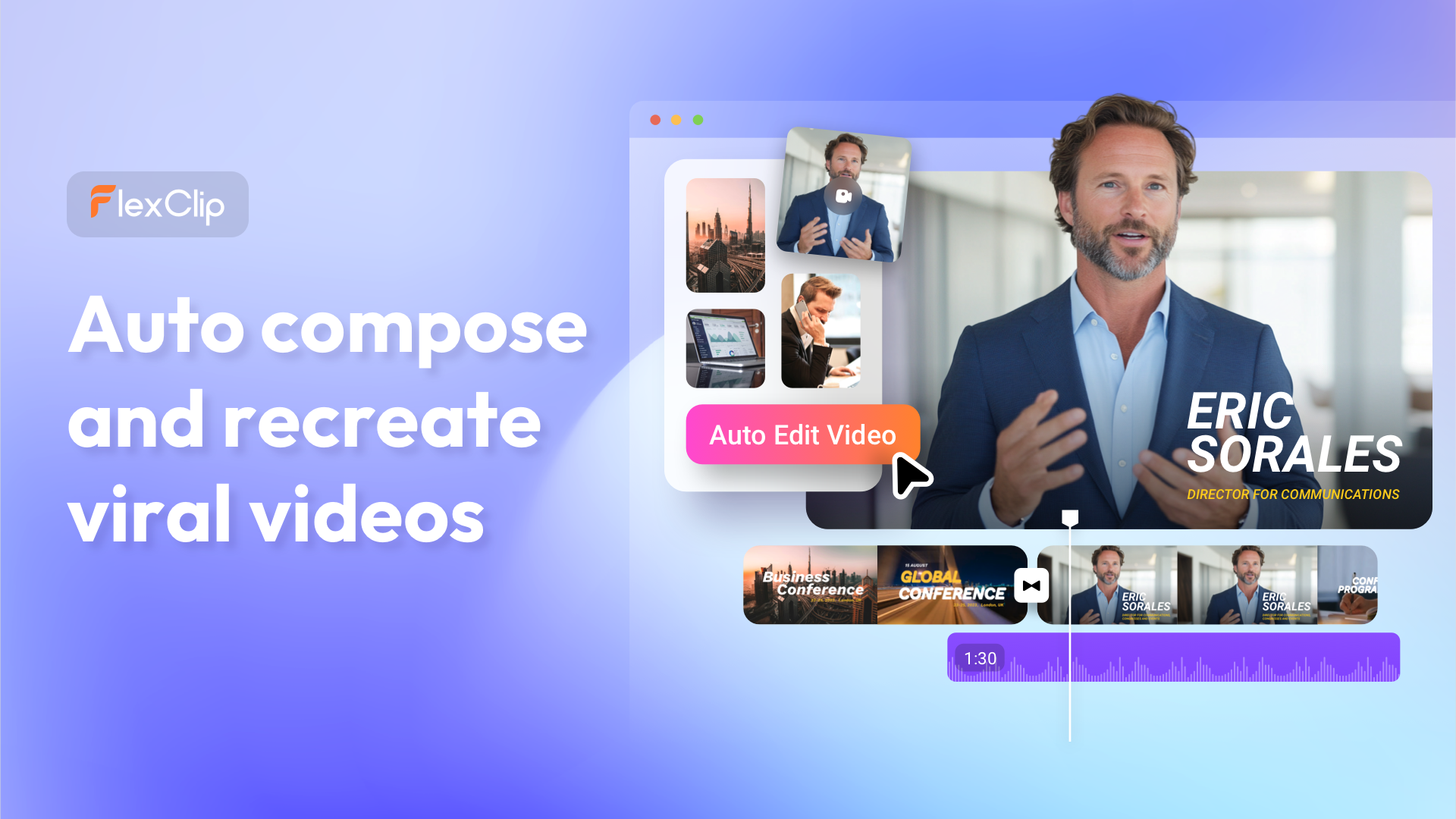
We decided to test the updates and see if AI is really capable of replacing the creative eye of a video editor. For this experiment, we chose two diametrically opposite scenarios:
- Creating an atmospheric video about a florist's work for social media.
- Compiling a family video from a child's birthday party.
Let's see how the new features handle these tasks and if you can really make a high-quality video even when you’re all thumbs.
AI Recreate. When style matters
What should you do when you have an idea, beautiful footage has already been shot, but your editing skills or sense of rhythm don't allow you to turn it into a dynamic Reels? Usually, we have two options: spend the evening learning or give up on publishing at all.
This dilemma is solved by the AI Recreate mode. You choose the mood and visual style, and artificial intelligence takes care of the most difficult part: adjusting frames to the rhythm of the music, overlaying transitions, adding text, and animating it.
The “Flower Aesthetics” Experiment

Photo by Anna Shvets: https://www.pexels.com/photo/woman-in-pink-dress-getting-a-vase-on-the-shelf-5894029/
To test the tool in real-life conditions, we decided to create a short video about the work of a florist. To do this, we collected a mix of content, a total of 12 files (photos and videos) showing the process of putting together a bouquet. We uploaded the materials to a pre-selected template in FlexClip and in just a few minutes we had a finished video in the desired style.
The result is impressive! The files are perfectly integrated into the layout, the music perfectly matches the mood, and the concise captions complement the video and give it a finished look. And best of all, it doesn't require any technical skills.
Want to repeat this experience? Here is a brief algorithm of actions.
Step-by-step instructions for AI Recreate
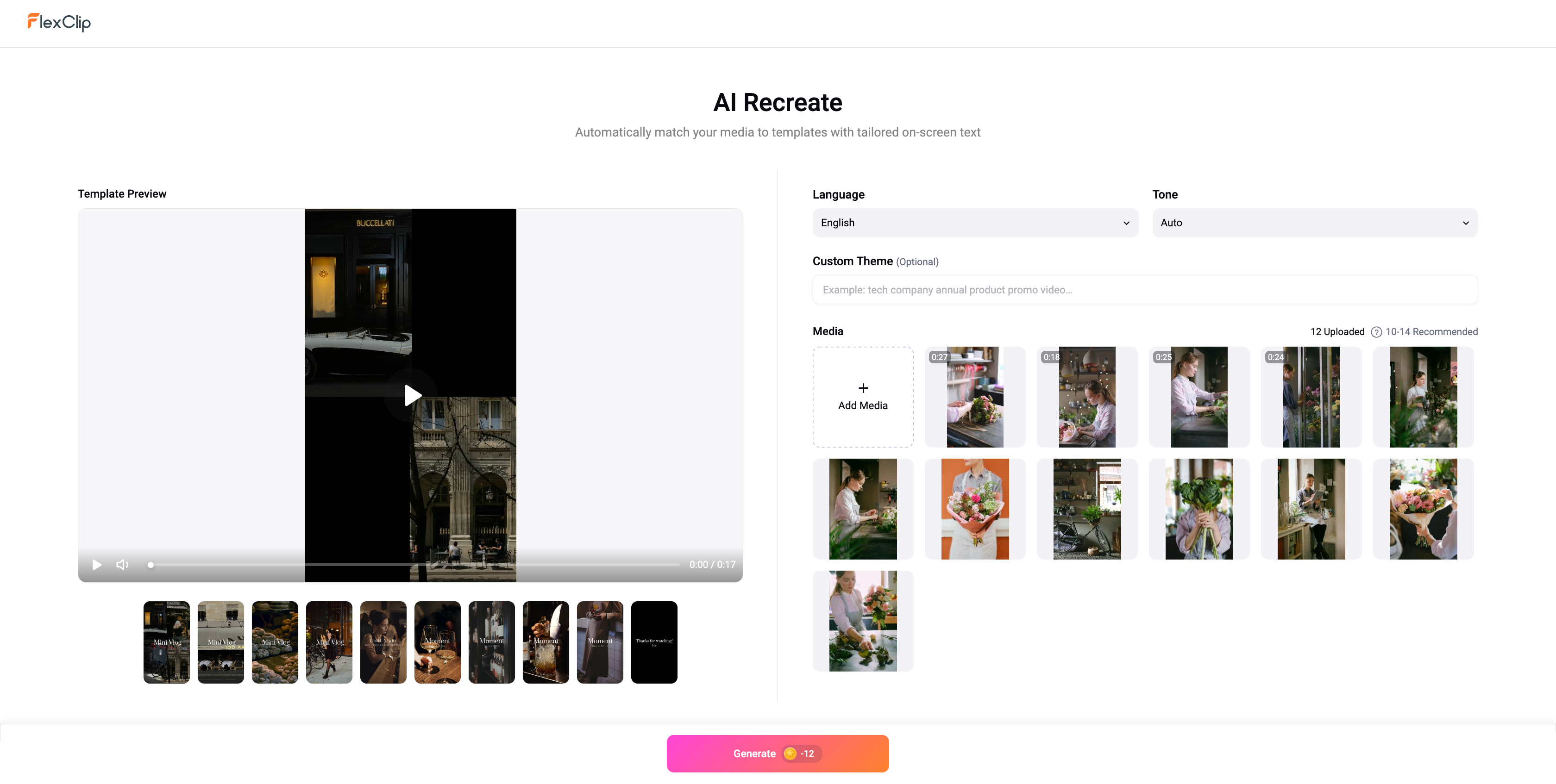
- Choosing a design
First, decide on the style you want. FlexClip boasts a huge library of templates. No matter what format, social network, or theme you have in mind for your video, you're almost guaranteed to find the perfect option. For convenience, all layouts are grouped by category, and to speed up your search, we recommend using filters. - Launching the magic
Once you've selected a template, click the AI Recreate button. The program will prompt you to upload your media files and, if necessary, provide a short text description for more accurate context. This is the only thing you need to do manually; the algorithm will do the rest. - The result
In a moment, the finished video will appear on the screen. AI doesn't just arrange the frames, it organizes them into a logical sequence, synchronizes them with music, and adds stylish titles. In our case, we got a full-fledged clip that looks professional and fully matches the selected template. Of course, the service leaves you freedom of action. The final project is available for editing, so you can adjust any moment to your liking.
Auto Edit. When content matters
If AI Recreate is about beauty and trends, Auto Edit solves a completely different problem. Imagine a typical situation: after a family celebration or vacation, you have dozens or even hundreds of different files. Some videos are too long, some are shaky, and some are just nice photos.
Manually reviewing this collection, cutting out the best moments, and editing them to music is a task that requires hours of painstaking work. This is where Auto Edit mode comes in handy. It works like a “personal video editor,” analyzing all the uploaded material, finding the best fragments, and stitching them together into a single story to the rhythm of the music.
The “Children's Party” experiment

Photo by Vlada Karpovich: https://www.pexels.com/photo/birthday-cake-on-the-table-7099974/
To test Auto Edit mode, we chose the classic “family archive” scenario. We prepared a chaotic set of files from a child's birthday celebration (videos of unwrapping gifts, games, blowing out candles, group photos, etc.).
This time, we didn't even waste time searching for a template. We just uploaded the files and, for better results, briefly described the desired theme of the video (although this information is not mandatory). As a result, we got an incredibly cute video about a unique day filled with fun and joy.
If you are interested in creating a warm video to remember, which you won't be embarrassed to show your relatives, without spending the whole weekend editing and selecting animations, check out our step-by-step guide for Auto Edit.
Step-by-step guide for Auto Edit
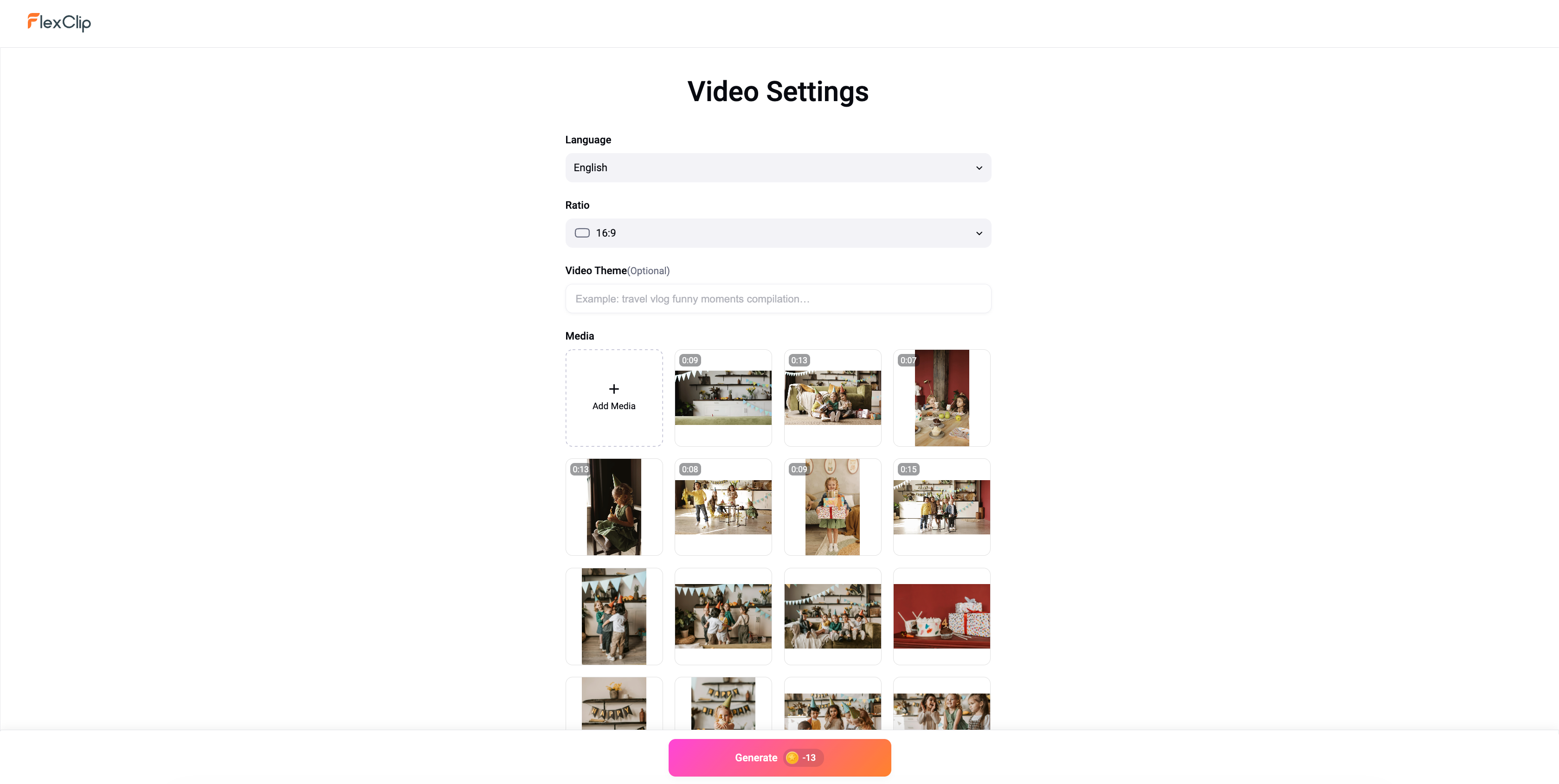
- Uploading materials
It all starts with content. We simply “threw” all the materials from the holiday into the editor without sorting the files. - Text prompt
The platform allows you to describe the video you want to get for the best result. For example: “A warm birthday celebration video for the family archive.” But this is not necessary, because AI analyzes the materials you upload and understands the context. - The end
And that's it! No further action is required. AI will independently select the best shots, combine them into a coherent video sequence, add animation, graphic elements, music, and captions.
As a result, we got a ready-made mini-film about the holiday. Yes, it's not a Hollywood blockbuster, but it's exactly what you need to preserve warm memories, and most importantly, it's done quickly and efficiently.
Comparison
After testing both tools, it becomes clear that FlexClip does not have a “better” or “worse” feature. There are two different approaches to content creation that meet completely different needs.
The main difference lies in priorities:
- AI Recreate works on the principle of “style above all else.” You fit your content into a beautiful design.
- Auto Edit works on the principle of “content above all else.” The design adapts to your events and timeline.
To help you make your choice, we have compiled a brief comparison table:
| Characteristics | AI Recreate | Auto Edit |
| Main goal | Create a visually striking picture, "to make it beautiful." | Tell a story, preserve the chronology and emotions. |
| Role | Designer: adjusts your shots to a ready-made template. | Editing director: cuts, glues and removes excess. |
| Duration | Usually short, dynamic videos (up to 1 minute). | It may be longer, depending on the amount of material. |
| Ideal for | Reels, TikTok, Stories, product promos, atmospheric videos. | Vlogs, travel videos, family archives. |
So if your goal is to quickly create a trending video for social media to increase your reach, choose AI Recreate. If you want to turn a bunch of files from a trip or holiday into a short film without any extra effort, turn on Auto Edit.
Advantages of using AI in editing
The use of artificial intelligence is dramatically changing the approach to working with video. After testing both modes (AI Recreate and Auto Edit), we identified the key advantages of the updated functionality that make it truly noteworthy:
- Huge time savings. This is probably the main advantage. Processes that usually take hours (selecting successful shots, rough editing, synchronizing with music) now take just a few minutes. You get a high-quality result in the time it takes to make a cup of coffee.
- Technical simplicity. You don't need to understand the intricacies of “bitrate,” “color correction,” or transition settings. The system takes care of all the technical routine, allowing you to focus solely on your ideas and selecting materials.
- Full control over the result. This is a critically important feature of FlexClip compared to many other generators. The service doesn't just output a finished video file. It creates a complete project that remains open for editing. Don't like a particular moment? Want to replace a photo or rewrite the text? You can do it at any time.
Conclusion
The FlexClip update clearly demonstrates that the barrier between raw material and finished video is becoming increasingly smaller. The new AI features are not just a marketing trick, but truly functional tools that can transform digital archives into emotional stories or stylish content.
Our experiment showed that regardless of the goal, whether it is creating trendy Reels for business or preserving warm family memories, artificial intelligence does an excellent job with routine work. It does not limit creativity but, on the contrary, frees up time for it by taking over the technical part of editing.
So, if your gallery has been gathering dust for ages with gigabytes of videos from vacations or holidays, maybe now is the time to give them a second life.